Where to show a product bundle so customers see it
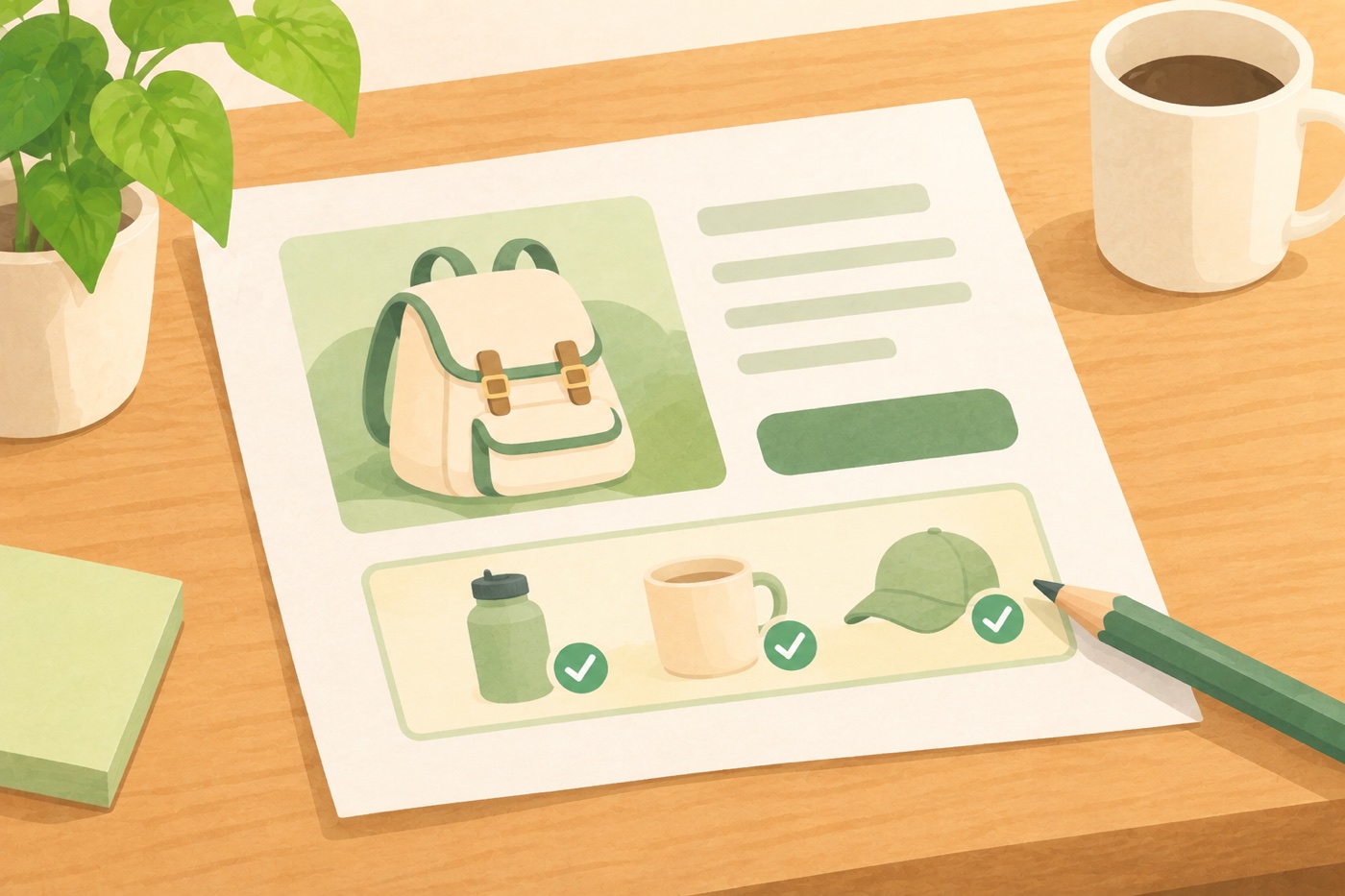
A bundle nobody sees sells nothing. Many shops set one up, check that it works and never look at where it sits on the page. Three places decide how often it is noticed: the product page, the shop grid and the words around it.
On the product page
There are two ways to place a bundle on its product page.
- As an extra option. The normal Add to cart button stays. The bundle appears below it as another way to buy, with its own button. Customers can still buy the product alone. Use this by default.
- In place of the normal purchase. The bundle takes the top spot, next to the price, and the single product can’t be bought on its own. Use this only when the product doesn’t make sense alone, such as a gift box built from other products.
Customers who came for one thing should still be able to buy it. If you hide the single product, you will lose some of those sales.
Keep it above the fold on a phone
On a phone, “below the button” can mean “below three screens”. Open the page on your own phone. If the bundle is not visible without scrolling past a long description, shorten the description or move the long text lower.
In the shop grid
Shop pages show a product as a card with an Add to cart button. A bundle needs choices that a card can’t show, so an Add to cart button on a bundle product makes no sense.
- Replace it with a View bundle button that opens the product page.
- Add a badge on the product image. A plain “Bundle” label tells customers it is a set. A badge with the saving, such as “-15%”, tells them why it is worth a click. Choose one, not both.
With a page builder
Elementor, Divi and other builders draw their own product layout, and the bundle may not appear in it. Use the bundle’s shortcode in your single-product template, where you want it to show. The shortcode shows the bundle of the product being viewed, so it belongs in the template, not on an ordinary page.
The words
Customers decide from a heading and a line, so write both for what they gain.
| Instead of | Write |
|---|---|
| Product bundle | Save 15% when you buy all three |
| Bundle items | Everything you need to start |
| Select products | Tick what you want. The discount grows with each one. |
Give each add-on a short line that says why it belongs. “Fits size 02 drippers” is more convincing than a product title alone.
In the cart
A bundle should look like a bundle in the cart too. When the main product is in the cart, the added items should sit under it, so customers see what they bought and don’t feel they’ve been charged for things they didn’t pick.
Check it like a customer
- Open the product in a private window on your phone.
- Find the bundle without scrolling much.
- Tick and untick an item and watch the total change.
- Add it to the cart and read the cart lines.
Doing this with C4D Product Bundles
C4D Product Bundles has Bundle Placement for the extra option or replace choice, a shop grid setting that swaps Add to cart for View Bundle, a shop badge that shows “Bundle” or the discount, and the [c4d_woo_bundle] shortcode for page builders. All of them are described in Display settings. Once the bundle is easy to find, read how to run a seasonal bundle offer.