How to show colour swatches instead of dropdowns on WooCommerce variable products
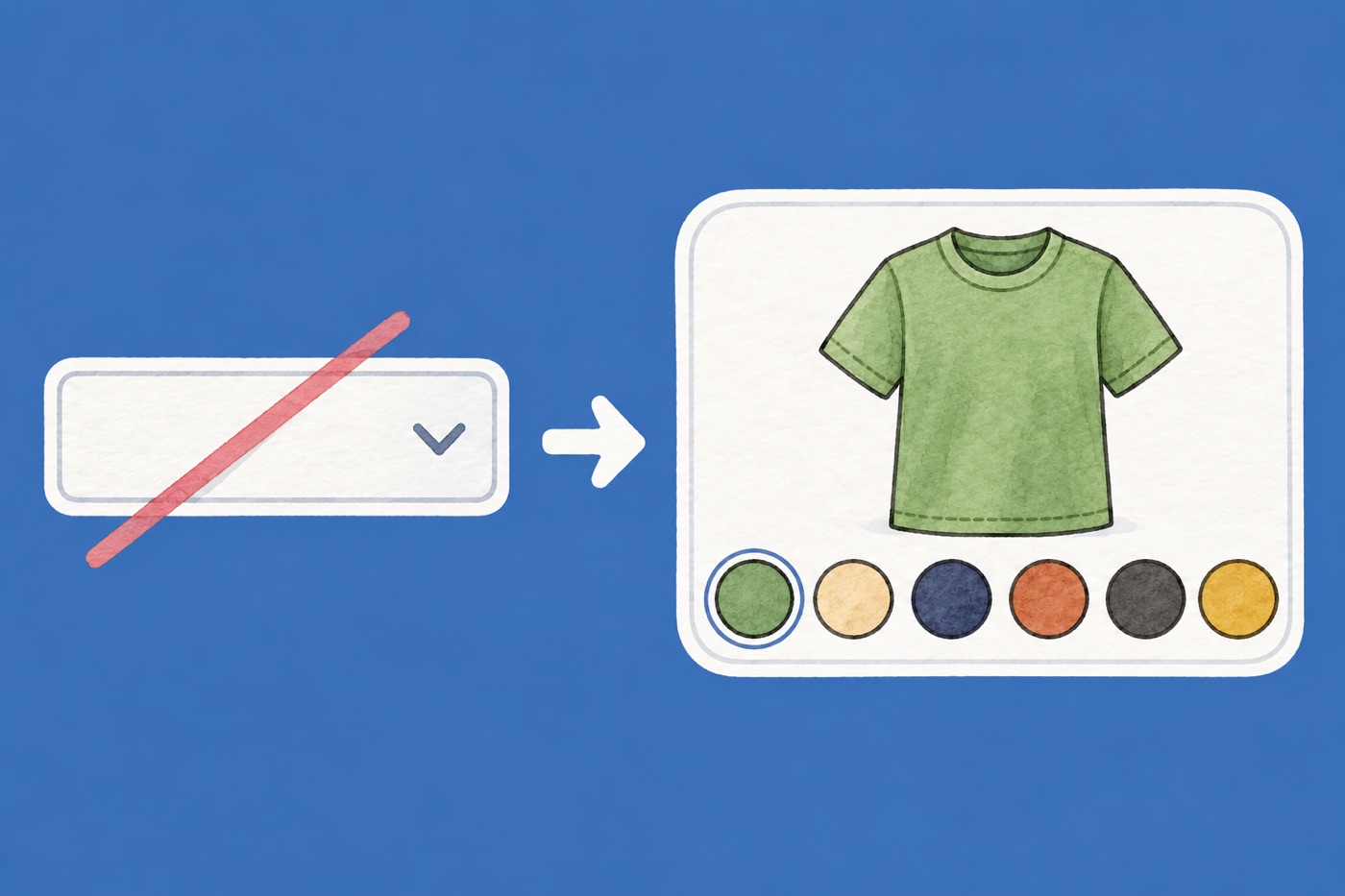
By default, WooCommerce shows the options of a variable product as drop-down menus. A customer has to open the menu to find out what colours exist, and a name like “Sage” tells them little. A row of swatches shows every choice at a glance.
This guide takes you from the drop-downs to working swatches. It uses C4D Variation Swatches & Gallery, a free plugin from WordPress.org.
Choose a type for each attribute
Each attribute has one swatch type, and every product that uses the attribute shows it the same way. There are four:
| Type | Looks like | Use it for |
|---|---|---|
| Color | A filled dot or square | Plain colours such as black, navy or red |
| Image | A small photo of the product in that option | Patterns, prints and materials, such as “floral” or “walnut” |
| Text | A button with the option name | Sizes and capacities: S, M, L, 250 ml |
| Select | The normal WooCommerce drop-down | Long lists, such as 30 ring sizes |
A product can mix types. A T-shirt can have colour dots and text buttons for sizes. If you are unsure between Color and Image, choose Image: a photo of the real product is always accurate, while a dot depends on picking the right shade.
Set up the swatches
- Install and activate the plugin from Plugins › Add New. Search for “C4D Variation Swatches & Gallery for WooCommerce”.
- Go to Products › Attributes and click Edit under the attribute, for example Color.
- Set Type and click Update. Do the same for Size, with the type Text.
- Open a variable product on your site and check that the drop-downs are gone.
Attributes you typed into a single product (not created under Products › Attributes) are set on the product itself. Open it, click the Variation Swatches tab in Product data, and use the Type menu under Custom Attribute Setting, with Text, Color or Image.
You can change a type at any time. Your products and variations stay the same, and only the way options are shown changes.
Colour dots: how the plugin picks the colour
WooCommerce stores only the name of a colour, so a dot needs a colour value from somewhere.
- Standard names work straight away. If the attribute is called Color and the option’s slug is a standard web colour name such as
black,navyorforestgreen, the dot is coloured on its own. The slug is the URL-friendly name you see under Products › Attributes › Configure terms. “Navy” works. “Navy Blue” has the slugnavy-blue, which is not a standard name, so it needs a colour of its own. - Set your own colours. Go to C4D Swatches › Colours. Each option of your colour attribute has a colour picker. Pick the colour or paste a hex code such as
#9caf88, then click Save Changes. A colour set here wins over the standard name.
If your attribute is not called color, set its name in C4D Swatches › General, in Colour attribute name (without pa_). That setting only decides which options the Colours tab lists. On the product page the plugin applies those colours to an attribute whose internal name is pa_color. For an attribute with another name, such as pa_colour, add one CSS rule per colour instead. The colours page shows the rule, and the CSS guide explains where to put it.
Image swatches
An image swatch uses the first photo of the option. Open the product, find the Swatch Images box, and under each option click Add product gallery images. The first photo of each option becomes its swatch. If an option has no photo, its swatch is empty.
If you add more than one photo per colour, the gallery switches when the customer picks that colour. Our guide to a photo gallery for each colour covers that.
Text buttons for sizes
Set the size attribute to Text and customers see buttons with S, M, L. Keep names short, and use a text button whenever the name is the information. For a list so long that buttons would fill the screen, keep Select.
Make them easy to read
- Contrast. Avoid a pure white dot on a white page. Use a very light grey such as
#f2f2f2, or add a thin border with CSS. - Use an image for mixed colours. A black and white stripe is clearer as a photo than as one dot.
- Readable names. The tooltip shows the option name when a customer hovers over a swatch. “Sage” is better than “SG-04”.
- Take colours from the photo. Use an image editor’s picker on a well-lit part of the product rather than the supplier’s name.
Check it on a phone
Open the product on your phone and tap every swatch. Check that the selected one is highlighted, that the price and stock message update, and that the dots are big enough to tap. On the product page, the plugin keeps its swatches on small screens by default. The Small screens setting on the Product page tab can switch back to the theme’s drop-down.
See it working
The everyday tee in the demo store has colour swatches with their own names and text buttons for sizes. Its colour swatches are small pictures, because each variation there has an image. That is the plugin showing the first photo of each colour, not a limit of colour dots. The stoneware mug shows picture swatches and how out-of-stock options look.
If swatches do not appear
- The product must be a variable product with the attribute ticked as “Used for variations”.
- The attribute type must not be Select.
- Clear your caching plugin and browser cache.
- Some page builders draw their own add-to-cart form. Use the builder’s standard WooCommerce add-to-cart element.
Troubleshooting covers more cases.
Questions
Does it work with any theme? It works with standard WooCommerce markup. Some themes use their own markup, and the troubleshooting page covers the usual fixes.
Does it cost anything? No. Every feature in this guide is free.
Will my existing variations break? No. Only the way options are displayed changes.
Read more on the plugin page.