How to find all your C4D plugin settings in one WordPress menu
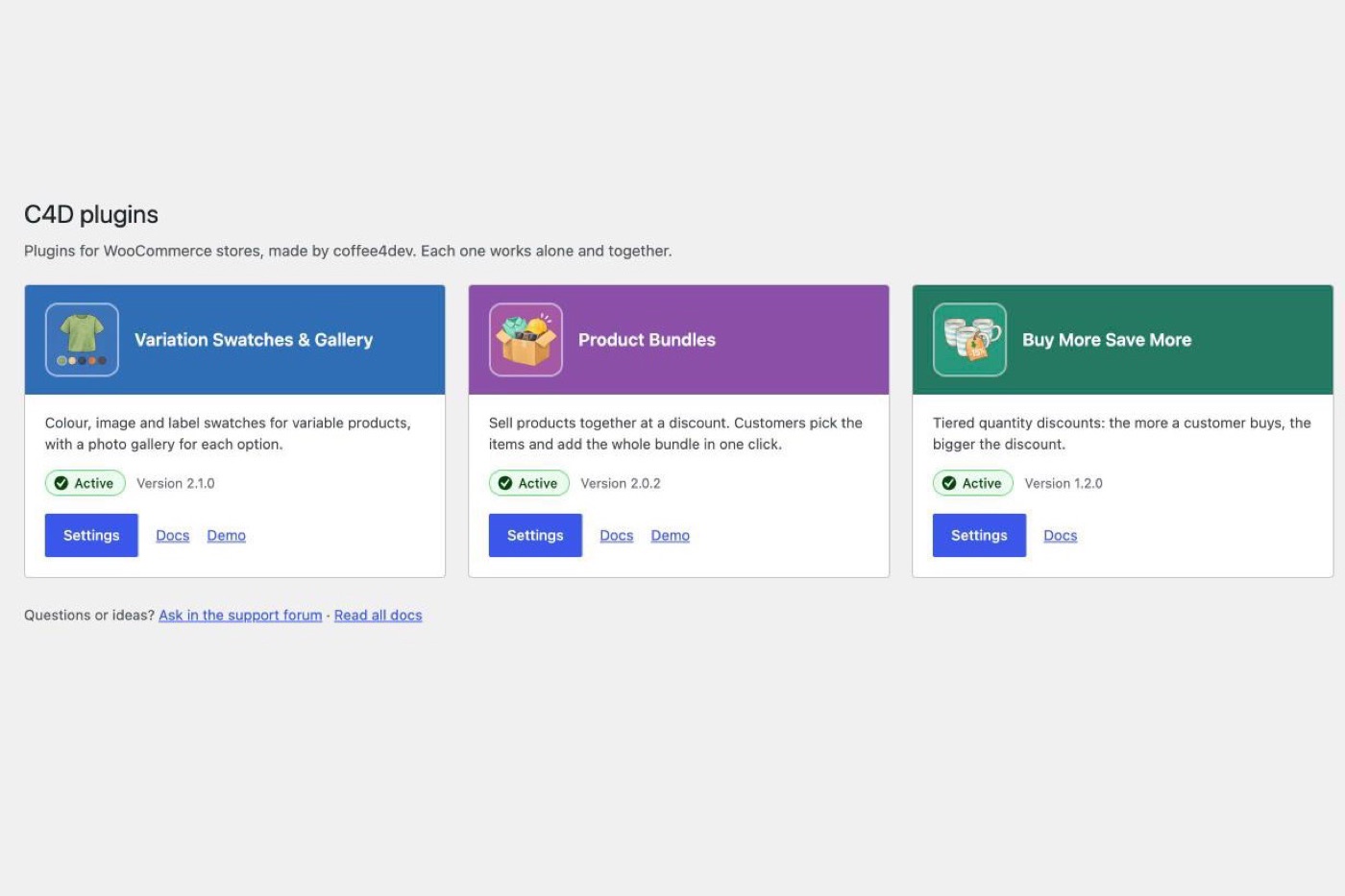
Until now each C4D plugin added its own item to the WordPress admin menu. With three of them installed that meant three separate entries, in three different places, and no hint that the other plugins exist.
From these versions on, they share one menu called C4D:
- C4D Variation Swatches & Gallery 2.1.0
- C4D Product Bundles 2.0.2
- C4D Buy More Save More 1.2.0
This guide shows where everything is now. Your settings, product data and licence keys did not move.
Where each setting is
Open C4D in the admin menu. It has up to six items. A plugin’s item only appears while that plugin is active.
| Menu item | What it opens |
|---|---|
| Our plugins | An overview of the three plugins (see below). |
| Swatches | Swatch types, colours, galleries, Multi Orders and styling for C4D Variation Swatches & Gallery. |
| Bundles | Settings for C4D Product Bundles. |
| Bundles licence | The licence page for C4D Product Bundles Pro. Only on the Pro version. |
| Buy More | Tiers, badges and Pro rules for C4D Buy More Save More. |
| Buy More licence | The licence page for C4D Buy More Save More Pro. Only on the Pro version. |
If you only use one of the plugins, you still get the C4D menu, with Our plugins and that plugin’s items. You never get two C4D menus.
What the Our plugins page shows
C4D › Our plugins has one card per plugin. Each card shows the plugin’s name, a one-line description, and its version if it is installed. The button depends on the state:
| State | Label on the card | Button |
|---|---|---|
| Installed and active | Active | Settings, which opens that plugin’s page |
| Installed, not active | Installed, not active | Activate, the standard WordPress activation link |
| Not installed, on WordPress.org | Not installed | Install, which opens the plugin’s page in WordPress |
| Not installed, not on WordPress.org yet | Coming soon | Learn more, which opens its page on coffee4dev.com |
Each card also links to the plugin’s Docs and, where there is one, its Demo store.
The page only reads which plugins are installed and active. It does not contact any server, show notices or ads, install anything for you, or read your licence keys. The buttons use the same links WordPress itself uses, so only people who can activate or install plugins see them work.
What did not change
- Page addresses. Every old link such as
admin.php?page=c4d-woo-bundlestill opens the same page. Bookmarks and the Settings link on the Plugins screen keep working. - Your settings. Nothing was copied or reset.
- Licence keys and Pro updates. The keys you entered are kept, and Pro updates still arrive in the Plugins screen as before. The licence pages only moved under C4D.
- Who can see what. The C4D menu and Swatches need the same permission WooCommerce settings need (
manage_woocommerce). Bundles and Buy More still need the administrator permission they had before (manage_options). A shop manager who could open only the Swatches page before still can, and still does not see Bundles or Buy More.
If your menu looks different
- Only some plugins moved. Plugins you have not updated yet keep their old top-level menu next to C4D. Update them and they join the C4D menu. Nothing breaks in the meantime.
- No C4D menu at all. The menu needs WooCommerce to be active. Check that WooCommerce is installed and your user can manage it.
- A card says Activate for a plugin you use. That plugin is installed but switched off. Click Activate on the card or on the Plugins screen.
Your old instructions
Older guides and docs say to open “C4D Swatches”, “C4D Bundles” or “C4D Buy More” from the top of the admin menu. Those pages are now under C4D, so read “C4D Swatches” as C4D › Swatches, and the same for the other two. The docs on this site have been updated to the new names.
Where to go next
- C4D Variation Swatches & Gallery: swatches, a gallery for each colour and multi-size ordering.
- C4D Product Bundles: sell products together at a discount.
- C4D Buy More Save More: discounts that grow with the quantity.