How to let customers order a colour and size grid in WooCommerce
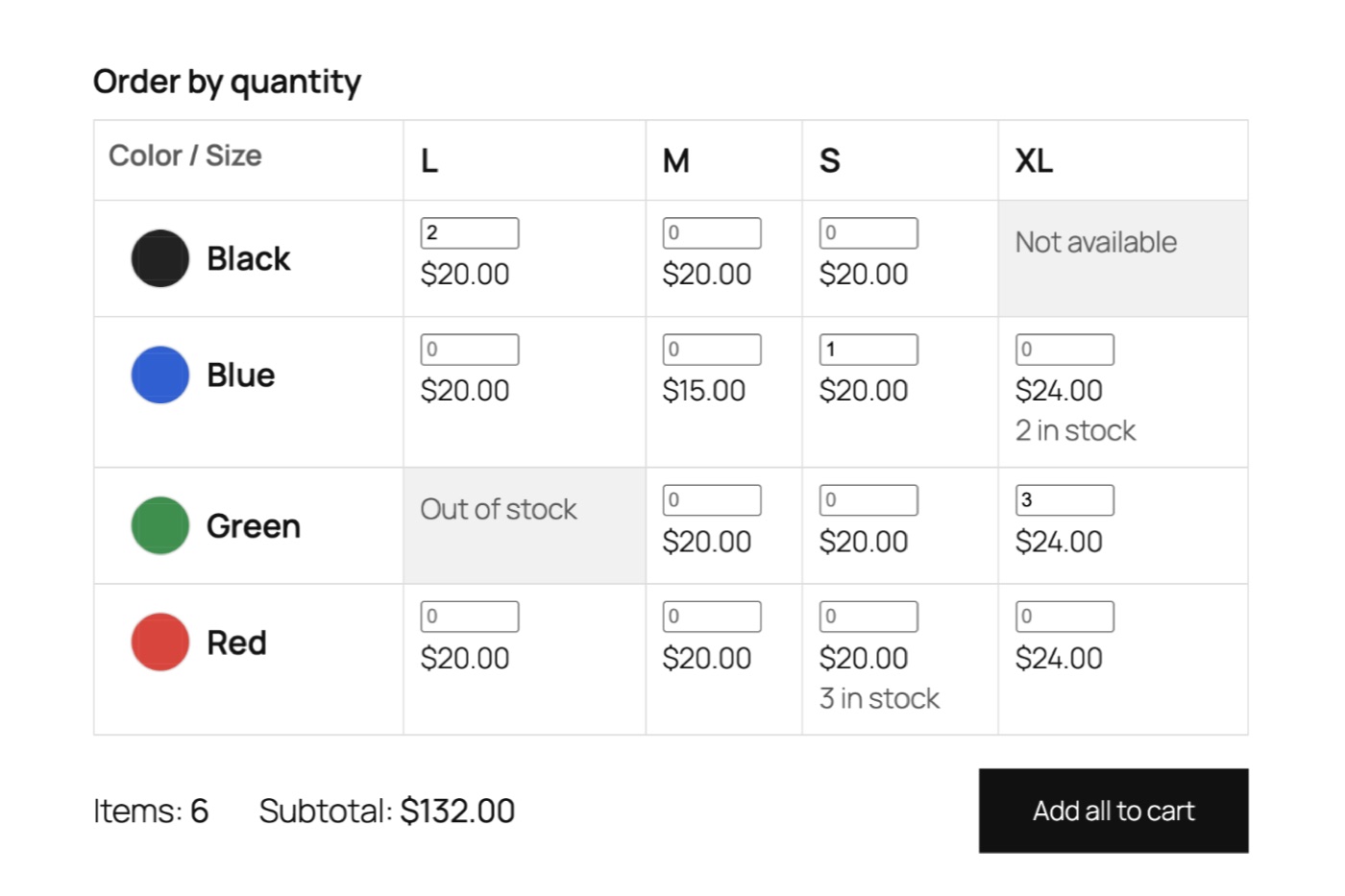
A buyer wants shirts for a team: two black large, one blue small, three green XL. On a normal WooCommerce product page they pick a colour and a size, add to cart, and repeat for every combination.
This guide shows how to put colours and sizes in one grid, so the buyer types a quantity in each cell and adds everything with one button.
When it helps
A grid suits products bought in several colours and sizes at once:
- Wholesale and trade orders, where a buyer fills a size run in every colour.
- Team clothing and uniforms.
- Kits and sets with two choices, such as a mug in three colours and two capacities.
Skip it for products people buy one of. A grid with a box in every cell is too much for a single purchase.
What you need
The order table is a Pro feature of C4D Variation Swatches & Gallery. Pro is available from $19 a year. The free plugin keeps all its features, including Multi Orders, which lets a customer pick one colour and then several sizes. The table goes a step further: all colours and all sizes at once.
The product must be a variable product with exactly two attributes used for variations, such as colour and size, and no more than 200 variations.
Set it up
- Open the variable product. Check that every colour and size you sell exists as a variation. A combination that does not exist is shown as “Not available” in the grid.
- In Product data, click the Variation Swatches tab.
- In the Order table section, set Order table to Yes.
- Choose Rows, for example Color, and Columns, for example Size.
- Click Update.
The same steps are in the order table docs.
What customers see
Each cell has a quantity box and a price. Cells for combinations that are sold out say “Out of stock” and have no box. Below the grid, the total number of items and the subtotal update as the customer types, and clicking a colour name changes the gallery to the photos of that colour.
If someone types more than is in stock, the cell shows a message and the button waits until it is fixed. On a phone, the grid stacks so each colour is a block with its sizes below.
What happens in the cart
The plugin checks every cell, then adds all of them in one request. Each cell with a quantity becomes its own cart line. If one cell fails, for example because someone just bought the last item, nothing is added and that cell is marked, so the customer does not end up with half an order.
Quantity discounts still work in the cart. C4D Buy More Save More counts all variations of one product together. The table itself does not show the discount, only the normal prices.
Add stock and price labels
Pro can also write the stock and the price difference on the swatches of the normal product form. See stock and price labels.
Questions
Does the free plugin lose anything? No. Nothing moved from Free to Pro.
Do I need a licence for the table to work? The licence only covers plugin updates. Pro features keep working without it.
Can I use it with three attributes? No. The table needs exactly two attributes. For one attribute, use Multi Orders.
Does it work on shop pages? It is for the single product page.
Start with the plugin page, and see our guide to a photo gallery for each colour if you want a photo set per colour.