How to let customers buy several sizes in one click in WooCommerce
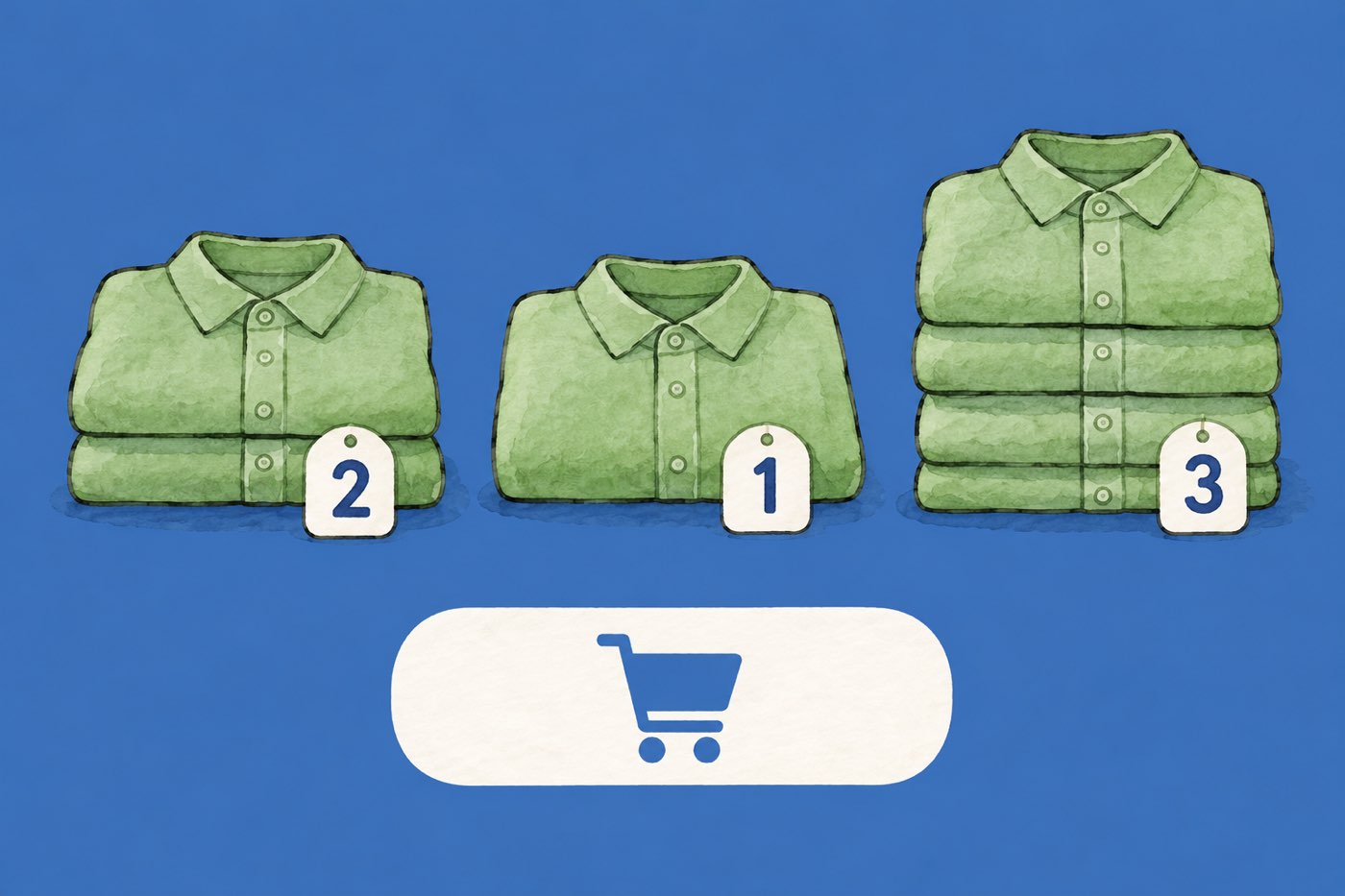
A customer wants three shirts for a team: two small, one medium, three large. On a normal WooCommerce product page they pick a size, set a quantity, click Add to cart, then do it all again for the next size.
This guide shows how to let them choose all the sizes on one screen and add them with one click. It also shows how to give a discount when the total quantity is high.
When it helps
Letting customers combine sizes suits products that are often bought in several sizes at once:
- Wholesale and trade orders, where a buyer fills a size run.
- Team clothing and uniforms, where each person has a different size.
- Kits and sets, such as the same bottle in 250 ml and 500 ml.
- Families, buying the same item for each person.
Skip it for products people normally buy one of. A quantity box under every option adds clutter.
How the plugin does it
C4D Variation Swatches & Gallery has a feature called Multi Orders. It is free and off by default. You turn it on for one product at a time, and you choose which attribute customers can combine, usually size.
On the product page, each size becomes a button with a small quantity box under it. The customer picks the other options (such as the colour), clicks the sizes they want, sets a quantity for each, and clicks Add to cart once.
Set it up
- Install and activate the plugin from Plugins › Add New. Search for “C4D Variation Swatches & Gallery for WooCommerce”.
- Check the attribute type. Go to Products › Attributes. The attribute you want to combine (for example Size) must be set to Text, Color or Image. If it is set to Select, the drop-down stays and there is nothing to hold the quantity boxes.
- Open a variable product and make sure every combination you sell exists as a variation.
- In the Product data box, click the Variation Swatches tab and scroll to Multi Orders Settings.
- In Select Attribute, choose the attribute, for example Size. None turns the feature off.
- Click Update.
If the tab says “Please go to Attributes tab and add attribute first”, add the product’s attributes and variations, save, and come back.
The Multi Orders page in the docs has the same steps.
What customers do
- They pick a value for each of the other attributes, such as the colour.
- They click the sizes they want. Selected sizes are highlighted, and clicking one again deselects it.
- They type a quantity under each selected size. The boxes start at 1.
- They click Add to cart once.
WooCommerce’s normal quantity box and the variation price block are hidden on these products, because each size has its own quantity.
What happens in the cart
Every size is added as its own cart line, with its own quantity. The plugin adds them one after another, about a second apart, so a long list takes a moment and the button shows its loading state until the last one is in. A size with quantity 0 is skipped.
Add a discount when they buy more
A quantity box invites bigger orders, so it pairs well with a reward. C4D Buy More Save More gives a percent discount when a customer buys enough of a product. It counts the quantities of all variations of one product together, so 2 small and 3 medium count as 5.
A new install of Buy More Save More starts with these tiers, and you can change them at C4D Buy More on the Tiers tab:
| Items of the product | Discount |
|---|---|
| 2 | 5% |
| 3 | 10% |
| 5 | 15% |
You switch the discount on per product, in the Buy More Save More tab of Product data. A product can use the shop-wide table (Global) or its own (Custom). The customer gets the highest tier their quantity has reached, and it applies to every unit, not only the extra ones. The tiers guide explains how it is worked out, and how to choose tiers helps you check your margin.
See it working
The wholesale linen shirt in the demo store uses both plugins. Pick a colour, choose three sizes and set the quantities. Three shirts get 10% off, and six get 20% off.
What it does not do
- One attribute per product. You cannot make two attributes combinable at once, such as colour and size together.
- Every combination must exist as a variation. The plugin adds the variation that matches each size and the other options the customer picked.
- It is not a quantity table. There is no grid of colours by sizes with a box in every cell. The customer picks one colour, then the sizes for it.
- It is set per product. There is no shop-wide switch.
- It works on the product page. The cart then shows one line per size.
Questions
Does it cost anything? No. Multi Orders is free, and so is the plugin.
Can customers add several colours at once? Not in one click. They pick a colour, add its sizes, then pick the next colour and add again.
Do I need Buy More Save More? No. Multi Orders works on its own. The discount is optional.
Can I style the quantity boxes? Yes, with CSS. The class is .multi-field. See how to style swatches with CSS.
Start with the plugin page, and see our guide to a photo gallery for each colour if you also want a photo set per colour.