How to show variation swatches on the WooCommerce shop and category pages
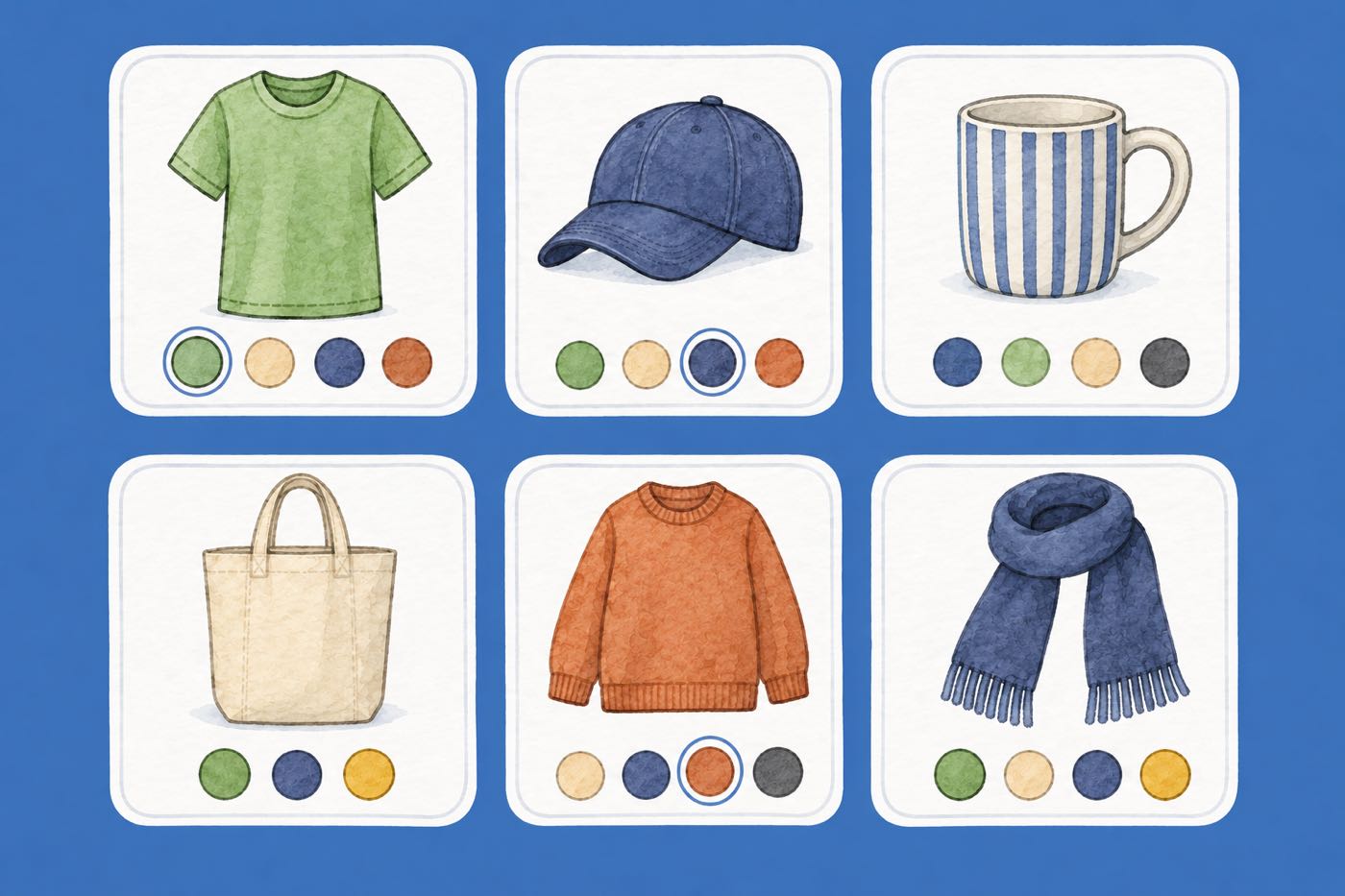
A customer scrolling your shop page sees one photo per product. If a shirt comes in six colours, they find out only after they click.
Swatches on the shop page fix that. A row of small dots or photos under each product shows what colours exist, and hovering one can change the thumbnail. This guide shows how to turn it on and tune it with C4D Variation Swatches & Gallery, a free plugin.
What you need first
The shop page shows swatches for products that have a Color or Image attribute. Set that up on the attribute first, and add photos for each colour to the product. Our guide to colour swatches walks through it.
Sizes and other text attributes do not appear on the shop page. They are left for the product page, where there is room for them.
Turn it on
- Install and activate the plugin from Plugins › Add New.
- Go to C4D Swatches › Shop page.
- Set Show swatches on shop pages to Yes and click Save Changes.
It is on by default, so after you activate the plugin you may already see swatches. They appear under each product in the shop, in category pages and in related products. When a customer hovers over or taps a swatch, the product thumbnail changes to the first photo you added for that colour in the Swatch Images box.
The shop page settings
All of these are on the Shop page tab. The defaults are shown.
| Setting | What it does | Default |
|---|---|---|
| Flip thumbnail | Shows the product’s second gallery photo when a customer hovers over the product. | Yes |
| Swatch alignment | Left, Center or Right under the product. Match your theme’s titles. | Left |
| Show image instead of colour | For colour attributes, shows the option’s first photo instead of a colour dot. | Yes |
| Show “View more” link | Shows only the first few swatches, then a link to the product page. | No |
| Swatches before “View more” | How many swatches show before the link. | 5 |
| “View more” text | The text of the link. | View More |
| Tooltip on mobile | Shows the option name on screens narrower than 1024 px too. | No |
A few notes on choosing:
- Show image instead of colour is on by default, so a colour with a photo shows that photo as its swatch. Turn it off to see plain colour dots.
- Flip thumbnail is a quick way to show the back of a garment or the product in use. It uses the second photo of the product gallery.
- Show “View more” link keeps product cards the same height when a product has many colours. Five or six swatches is plenty.
- Tooltip on mobile. The tooltip shows the option name. A phone has no hover, so with this setting on the name appears on tap. Leave it off if a tap should go straight to the product.
Change the size of the swatches
The swatches are small by default. The dots on the shop page are 12 px wide with a 5 px margin. Size, spacing and tooltip colours are not settings any more since version 2.0.0. You change them with CSS at C4D Swatches › Custom CSS.
This makes the dots 20 px:
.c4d-woo-vs-box-colors .c4d-woo-vs-box-color {
  width: 20px;
  height: 20px;
  margin: 4px;
}
On a grid of four products per row, 18 to 22 px usually looks right. Swatches that are too small are hard to tap, so use about 24 px if many customers shop on a phone. How to style swatches with CSS has more rules, and the docs page lists the class names.
When products load without a page refresh
Some themes and filter plugins load more products with “load more” buttons, infinite scroll or Ajax filters. The plugin has to add swatches to those new products as well. It does this by default after a request to admin-ajax.php.
If swatches are missing after filtering or scrolling:
- Go to C4D Swatches › Compatibility.
- Make sure Run after Ajax requests is on.
- If your filter uses another address, such as
wp-jsonor?wc-ajax=, enter it in Ajax URL pattern. To find it, open your browser’s developer tools, go to the Network tab and filter once.
Troubleshooting covers it in more detail. If your related-product lists show no swatches, the Product item selector setting on the Product page tab (default li.product) must match your theme’s product wrapper.
Check it on a phone
Open your shop on a phone. Tap a swatch and check that the thumbnail changes and that you can hit each dot without touching its neighbour. If product cards now have different heights, use the “View more” link or a smaller number of swatches.
See it working
The demo store’s category page shows swatches under each product. The tote bag has fourteen colours, which shows how a long row of swatches wraps onto new lines.
Questions
Why do I see no swatches on a product? The product must be a variable product with a Color or Image attribute. Text attributes do not show on the shop page.
Can I show size buttons on the shop page? No. Only Color and Image attributes appear there.
Does it cost anything? No. Everything in this guide is free.
Where do the swatches go on the card? Under the product, in the shop, category and related-product lists. Some themes lay out the card differently, so check yours.
See the full list of settings in the settings reference, or the plugin page.